Asurion Tech Support Chat Widget
Overview
Asurion is a global tech care leader offering insurance, repairs, installation, and 24/7 support for devices and home electronics. They serve over 300 million customers, partner with major carriers, and provide expert human tech support as a core benefit of their plans.
I shaped the vision for Asurion’s tech support experience by redesigning the UI, integrating GenAI, and co-leading initiatives to build a scalable design system that ensures consistency across all AI-powered experiences.
Over the course of a year, my team and I secured stakeholder alignment, partnered with 15+ teams, and iteratively built and launched a new product that replaced outdated technology and transformed how customers get tech support and interact with Asurion’s experts.
Current Experience
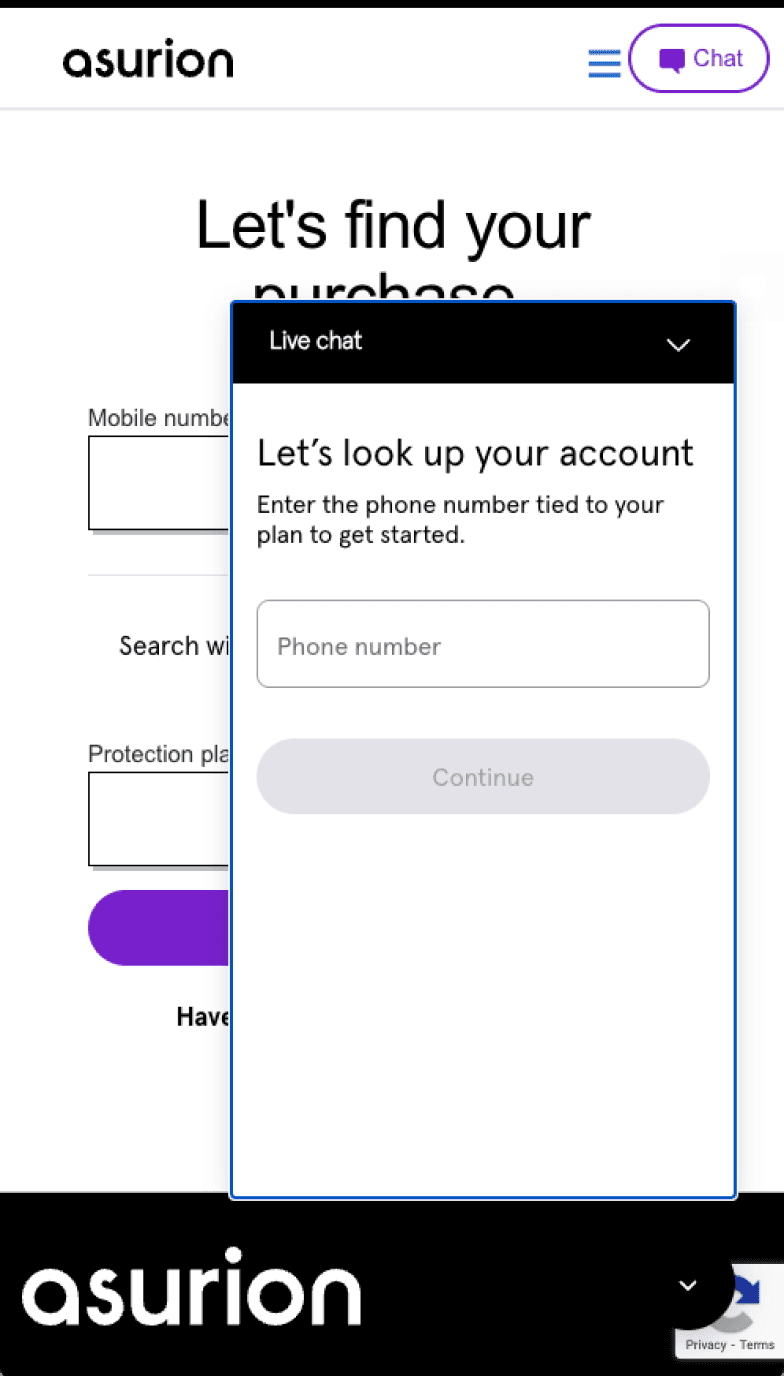
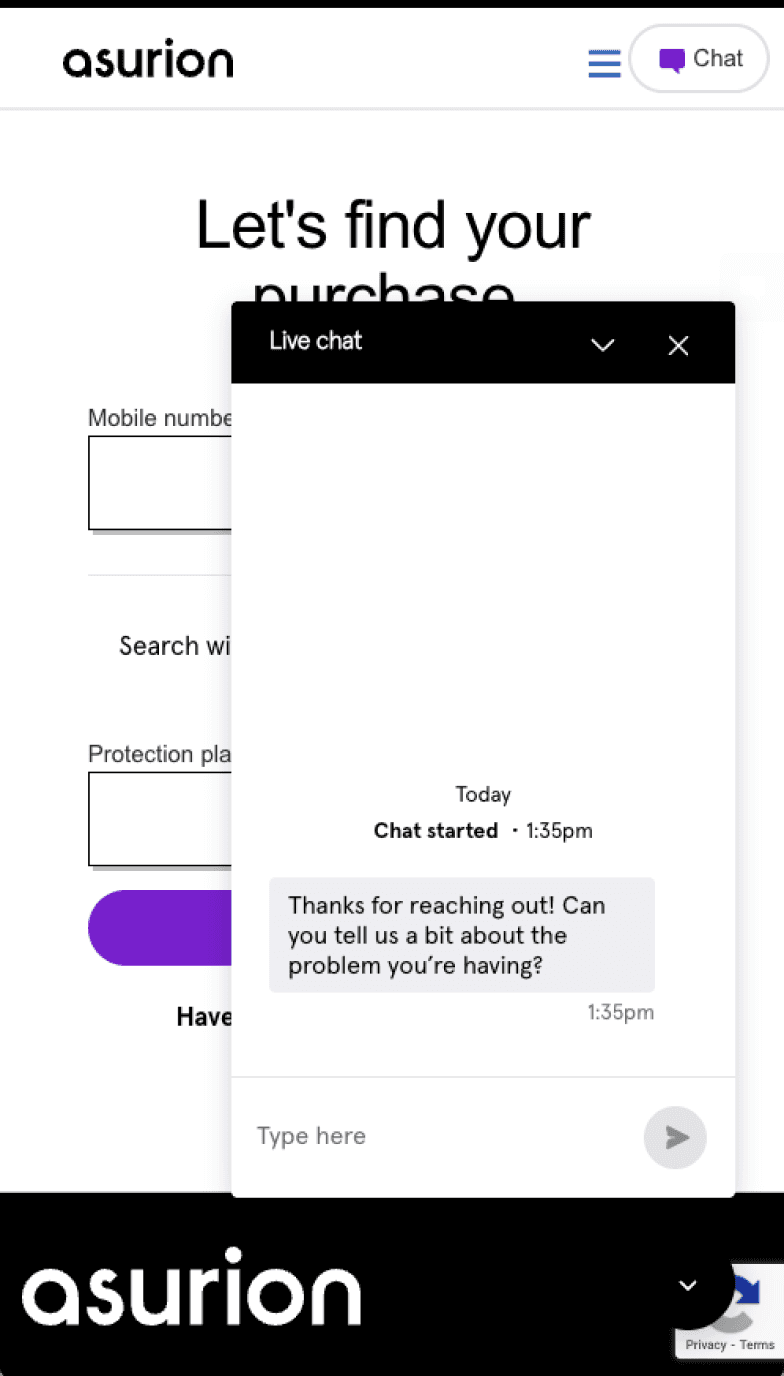
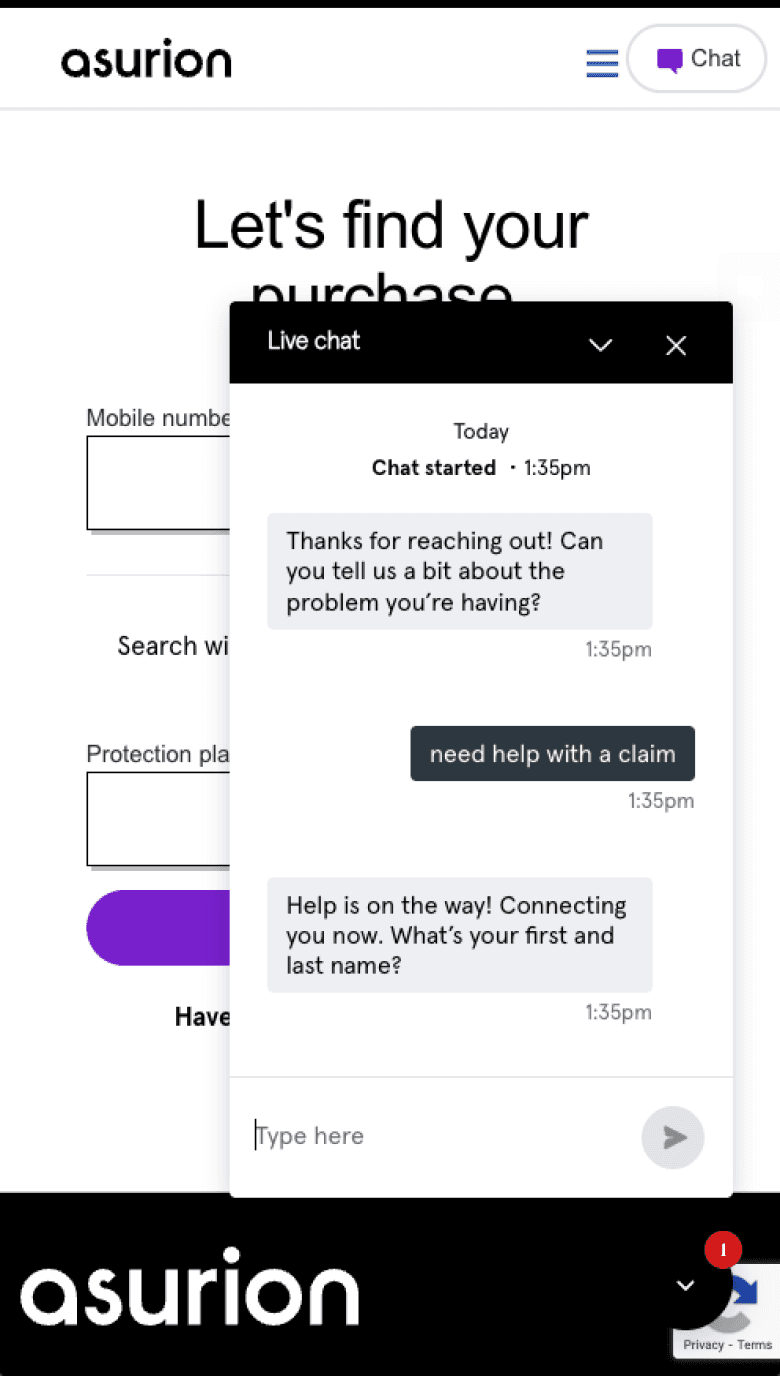
Asurion’s approach to how they offer tech support varies from team to team and client to client. Customers access tech support via the Remote Expert SDK (RE SDK), which lives on various pages across asurion.com and partner sites. The RE SDK is a static messaging chatbot.
Problems to solve
Customer
It is difficult to find and access tech support across Asurion and uBreakiFix’s websites, as well as within a customer’s account.
Customers are not aware of the different types of tech support they have access to (chat messaging, phone call, claims filing).
Customers have to repeat basic information like name, phone number and reason for connecting before connecting to an expert. The systems currently in place do not pass context to the expert, therefore requiring extra effort on the customer’s end and adding extra time to the overall interaction.
Business
The current chat widget used to connect customers with expert support has seen limited investment and no recent enhancements, resulting in outdated technology and branding. It also lacks the flexibility needed to meet Asurion’s evolving business requirements.
Teams are duplicating work by rebuilding similar solutions for different clients, which drives up development and infrastructure costs and slows down delivery timelines.
Opportunity
How we measure success


Process
Version 1
The first iteration of the tech support experience was released as a bumper component on the Asurion flagship site, a Verizon onboarding page and as part of a tech support pilot with Google (read case study here). Following strong performance, we secured stakeholder approval and continued evolving the design to make it more dynamic and expand its capabilities.
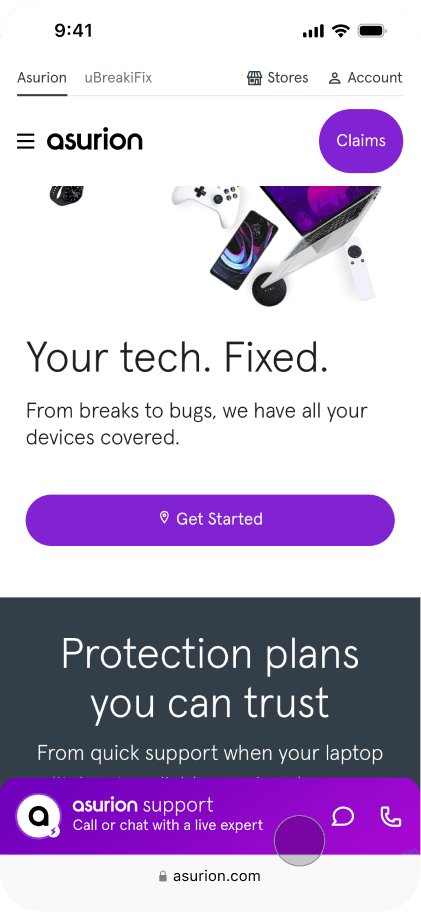
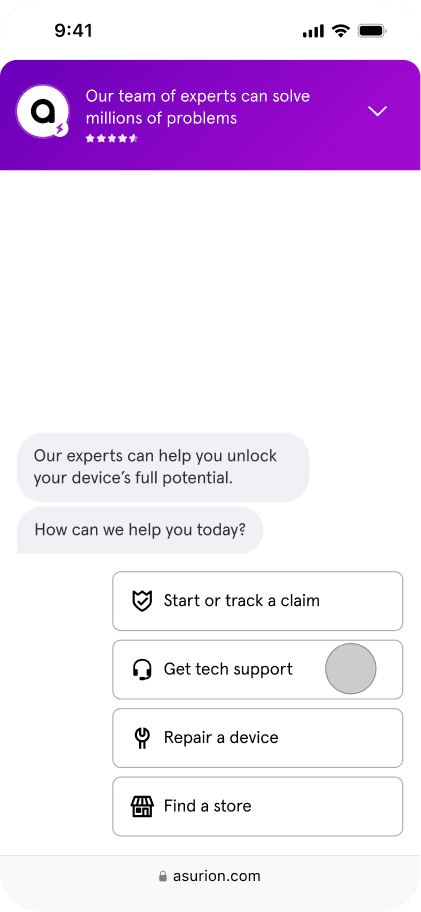
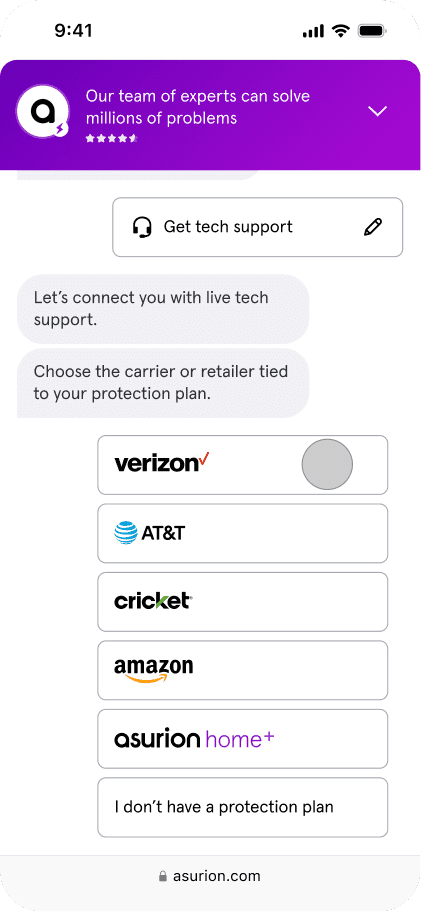
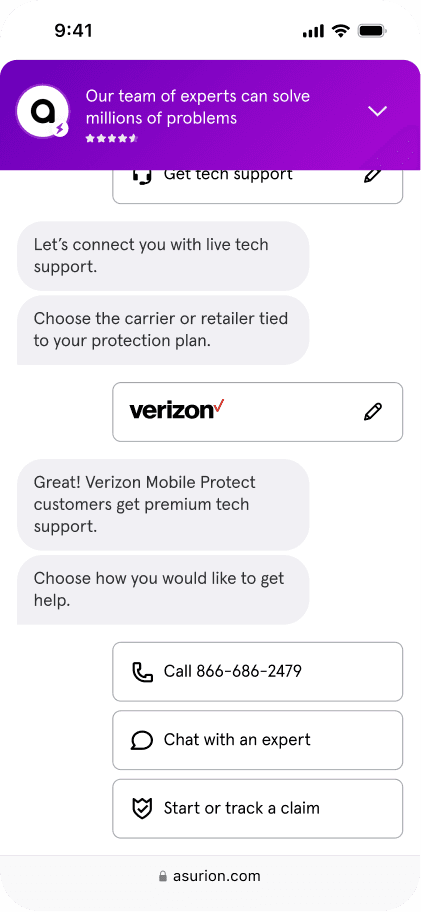
Version 2
The second iteration of the tech support experience was released over the course of many months.
Launcher
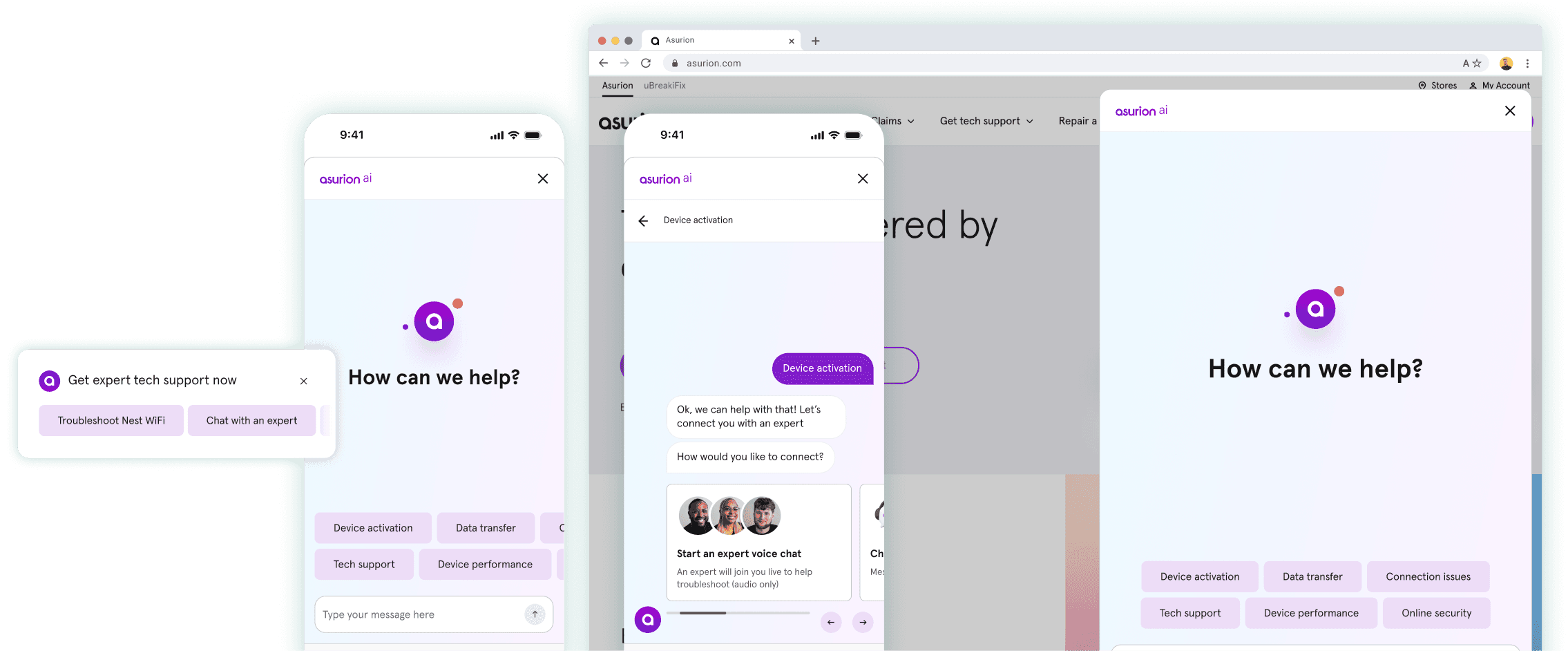
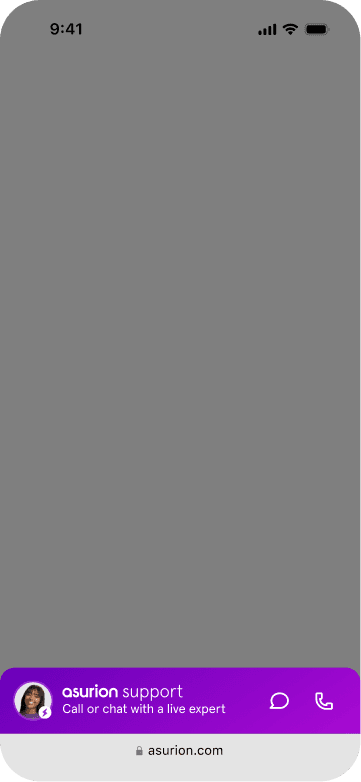
For the second iteration of the Asurion Chat Widget, we evolved the launcher from a bumper into a floating action button (FAB) and floating action card (FAC) design. This evolution introduced greater customization, added animation to enhance visual interest and engagement, and incorporated intent tiles into the FAC—an element already proven to drive higher engagement.
Landing Panel
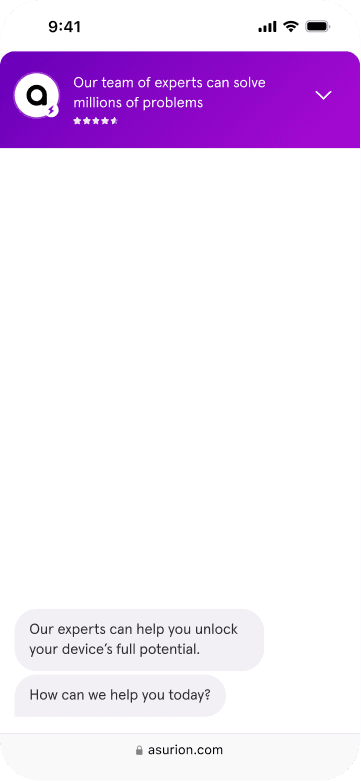
We added a Landing Panel due to its success in the Google Pixel Tech Support Pilot. The input field moved to the bottom and I worked with our animation designer to add movement to the intent tiles and avatar to emulate the feeling of being “alive” since the chat is powered by AI and experts.
Secondary Panel
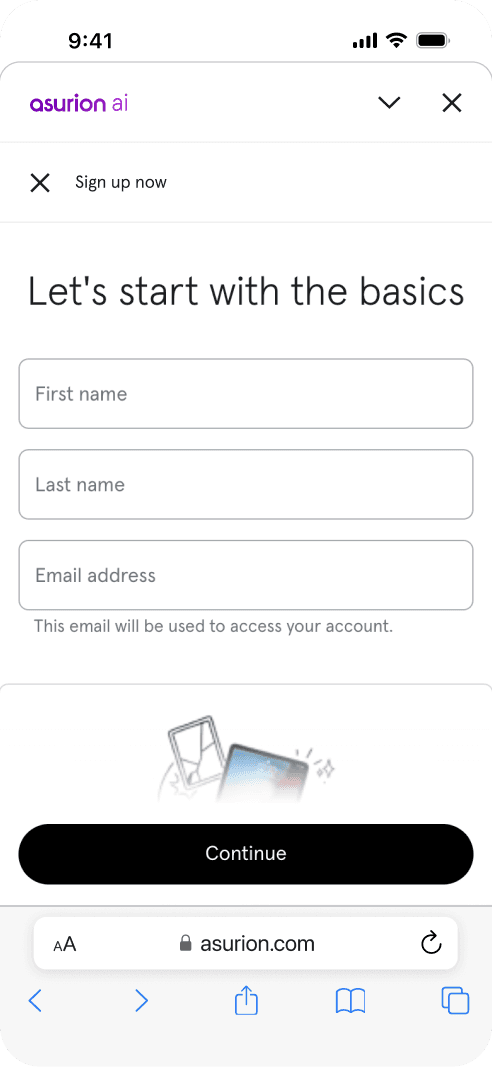
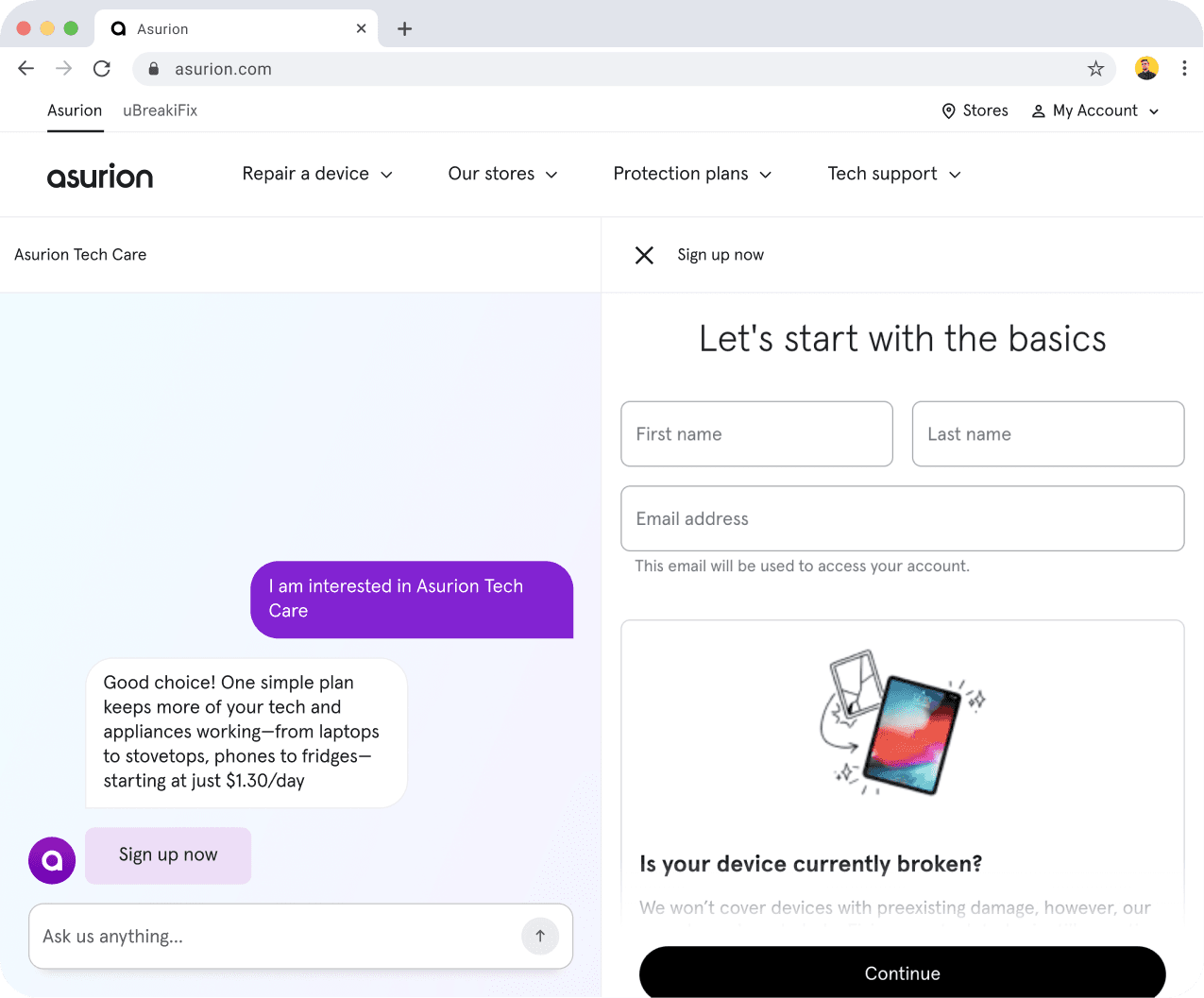
Built capability for a secondary panel that overlays the chat panel for actions that cannot yet be completed within a conversational flow. It can be used as an iframe, to fill out forms, display supporting imagery, etc, all while keeping the user within the Chat Widget.
Secondary Panel Example
Desktop Configurations
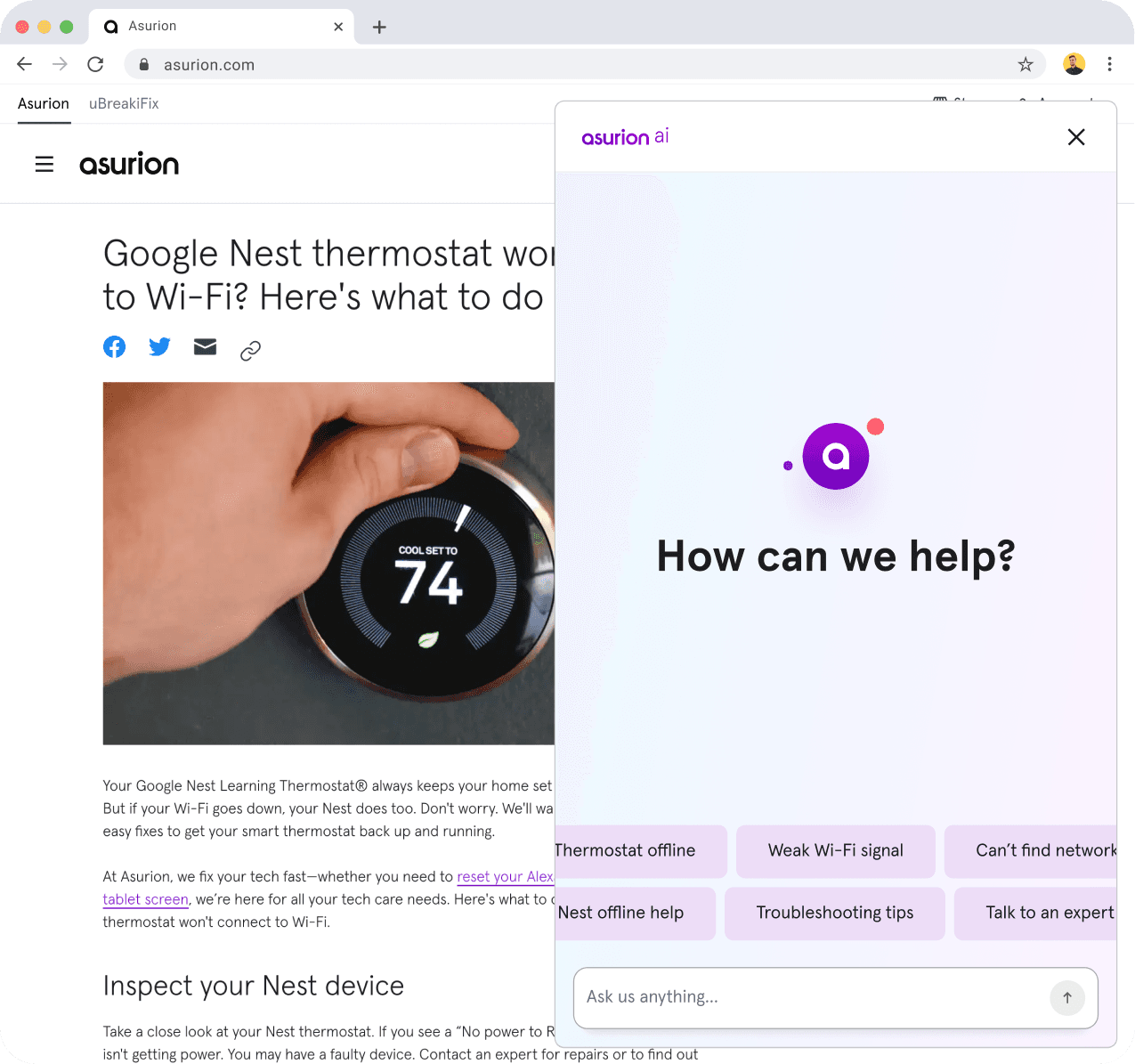
Built four configurations for how the widget can be embedded on the host page: floating panel, full page modal, full page embedded, and embedded page section. These presentations offer lots of customizability for partners and multiple entry points into the tech support experience for customers.
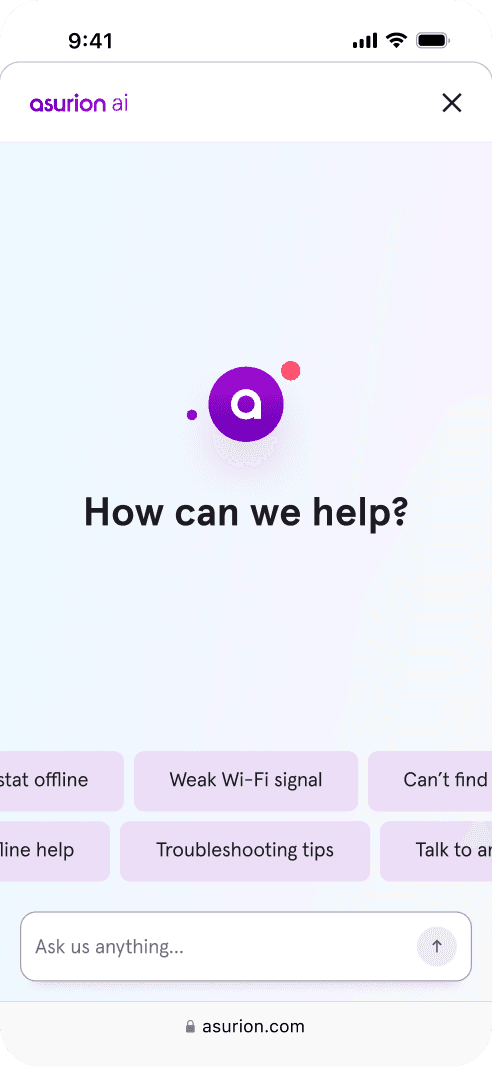
Configuration 1: Floating Panel
This panel-style layout overlays the host page content. Mobile expands as a drawer. Desktop expands from the bottom right to cover 50% of the page.
Configuration 2: Full Page Embedded
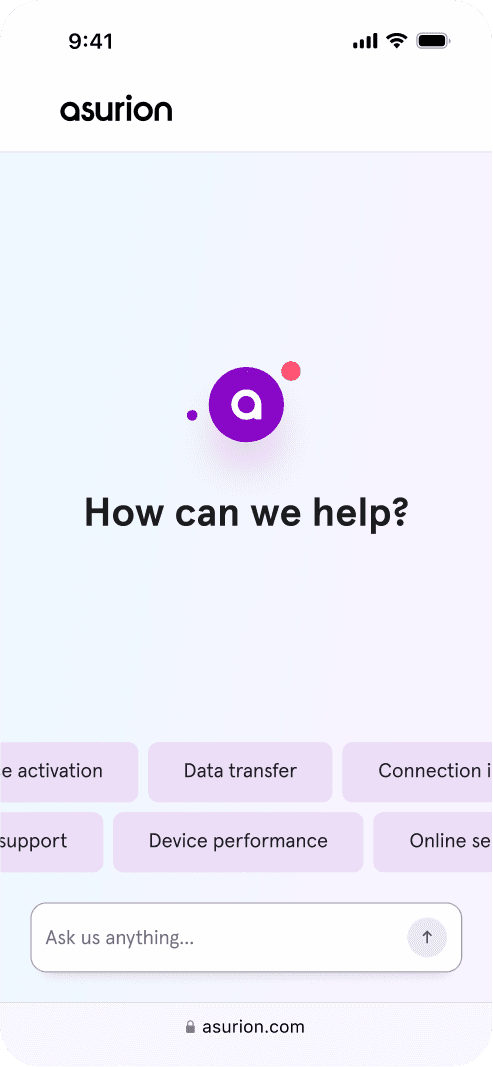
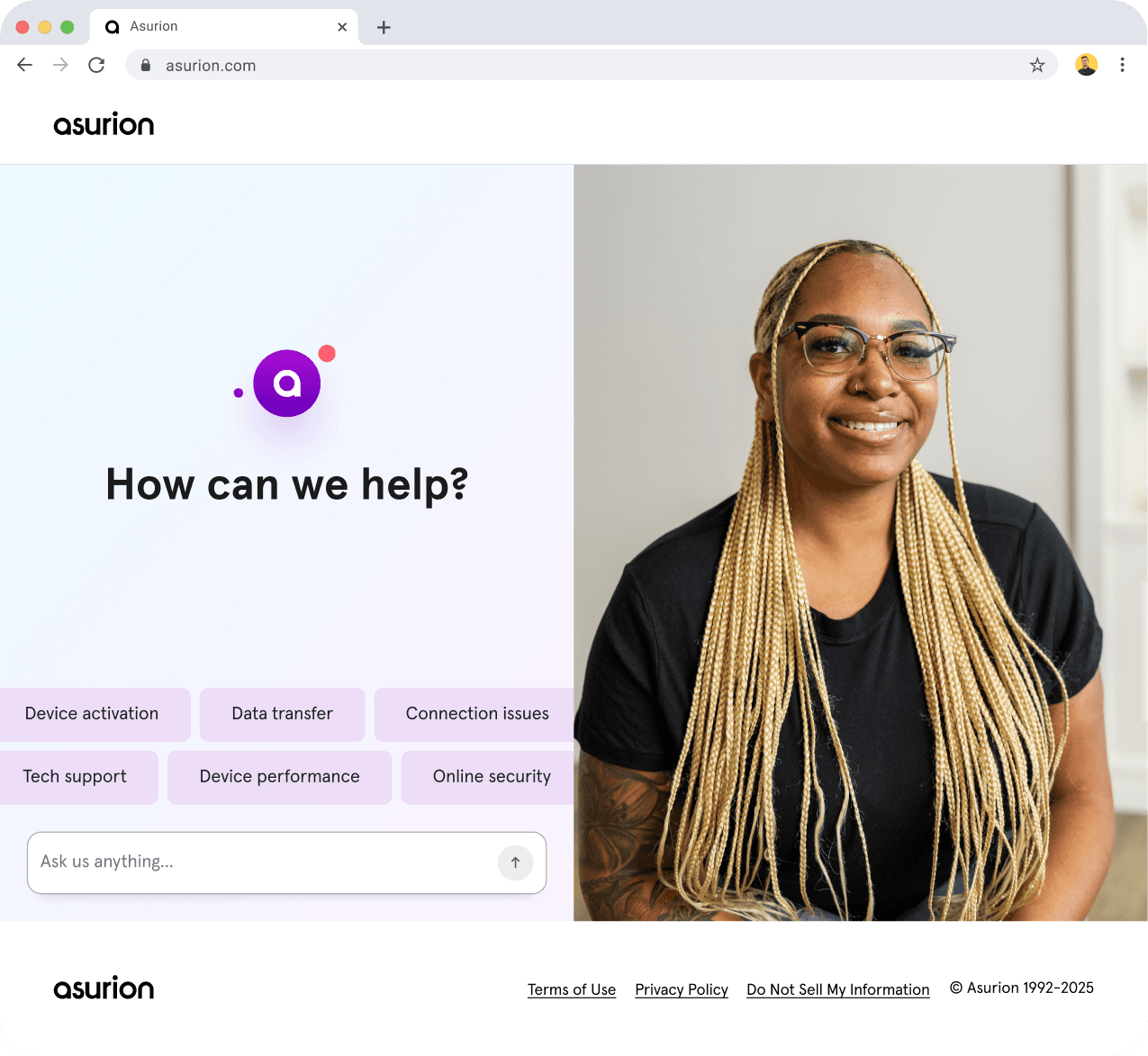
For instances where the chat widget needs to occupy a full page. For example, the chat widget can be hosted on its own URL to allow users to interact with no other distractions.
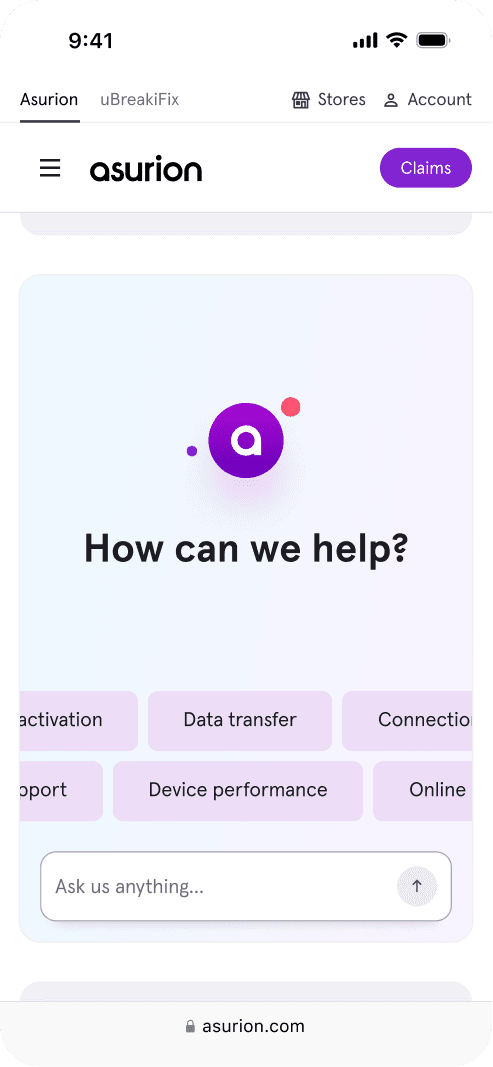
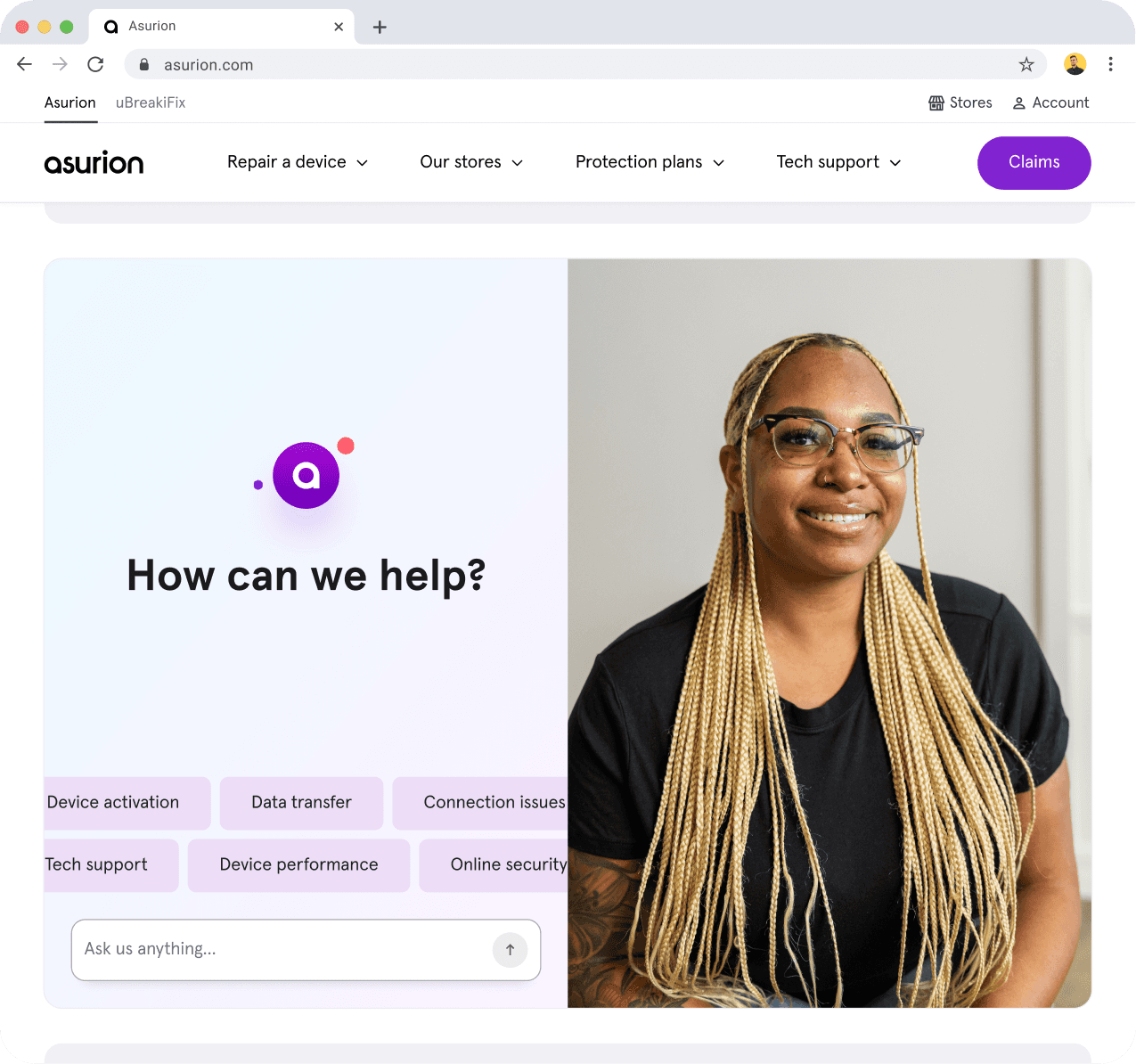
Configuration 3: Embedded Page Section
This configuration allows the chat widget to be embedded within the host page contained as a section. The user can interact with this embedded section but once a chat starts, it expands into a full-page modal (configuration 4) so that the user’s focus is solely on the chat interaction.
Configuration 4: Full Page Modal
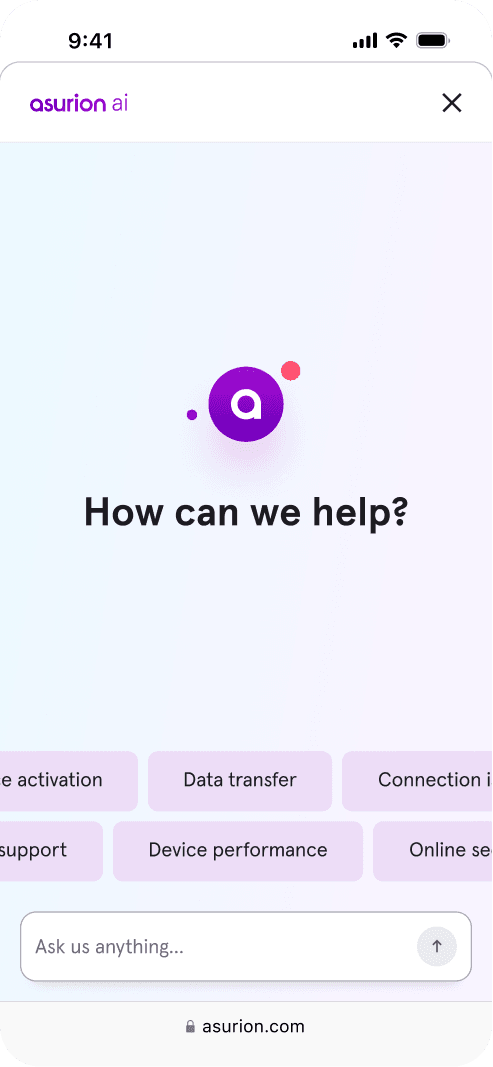
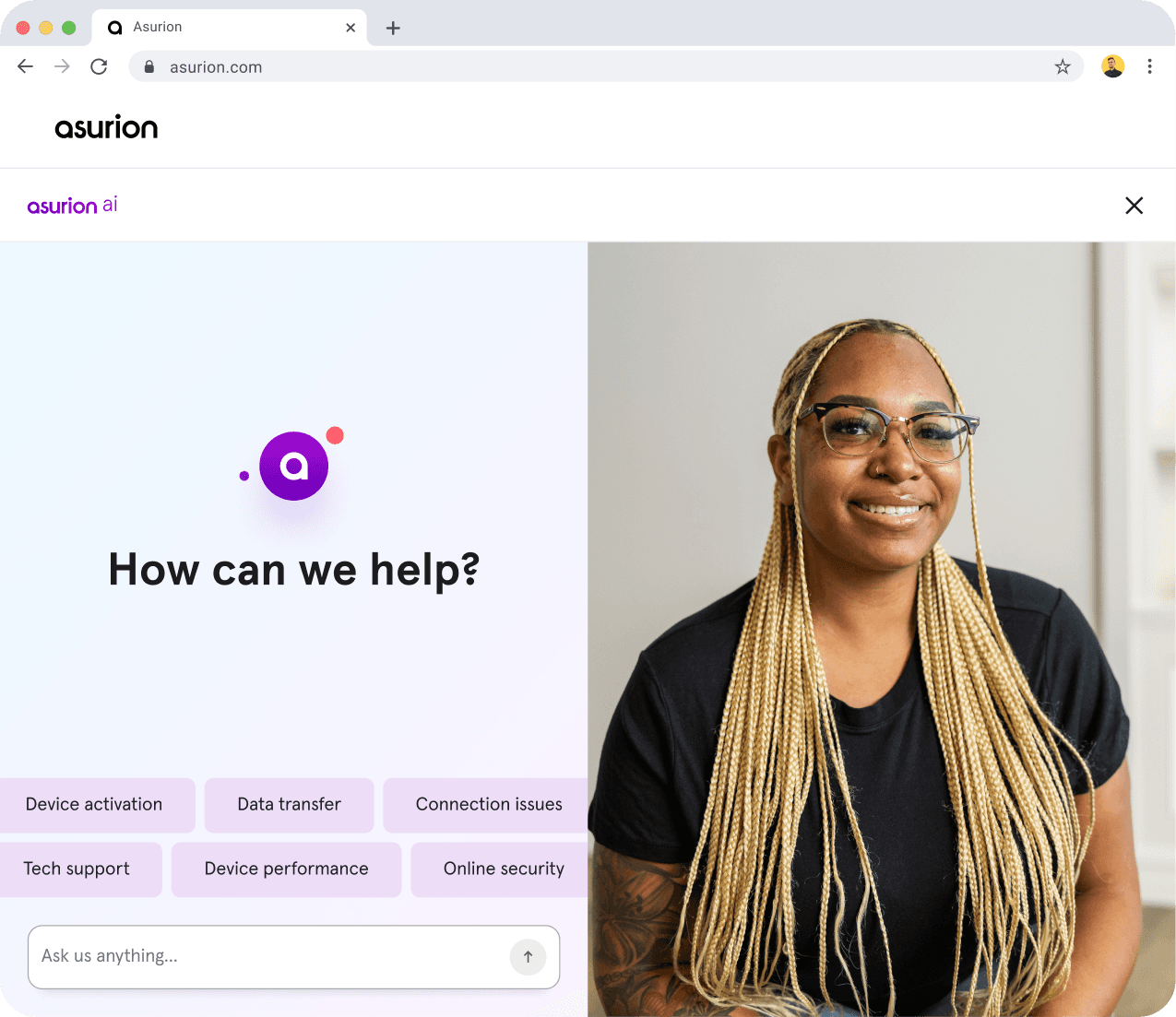
This configuration is used when the user interacts with the embedded page section (configuration 3) and a chat starts. Mobile acts like a drawer. Desktop expands to a full width modal.


Read my next case study ->